

How-To
DJfy - How-To
Ready for your party?
STEP 1
Read these instructions carefully π€
So you don’t have to deal with DJfy right at the start of your party, we’re providing you with all the important information here in advance.
In this guide, we’ll show you how to connect DJfy to your Spotify account, how you and your guests can submit song requests and vote on songsβand what you should keep in mind when using it.
β Your to-do list before the party starts β
Get your Spotify playlist ready for the party. If no song requests come in, your playlist will simply be played.
STEP 2
Wait for your access email the day before your party βοΈ
Once your order has been successfully placed, we will prepare the following for you:
Your personal DJfy account + URL (your-selected-domain.djfy.at)
To make sure your party is just right for you, we’ll create your personal URL. This way, your guests can quickly and easily submit song requests.Access email:
. In the access email, you’ll find both the link and the password for the DJ area. You’ll need this password in the next step.
STEP 3
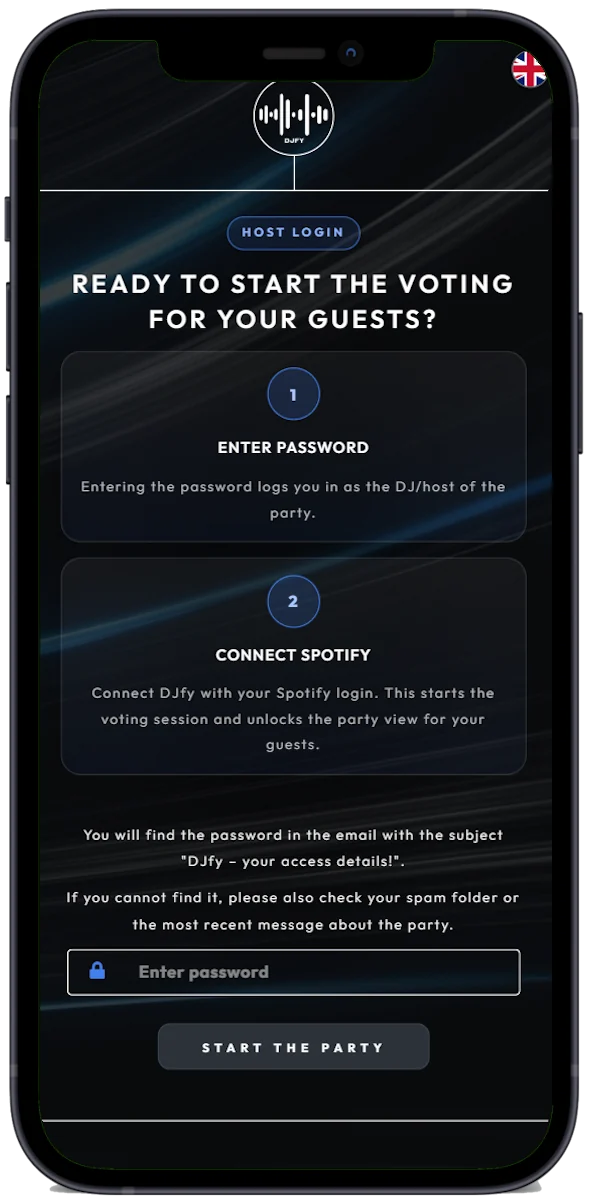
Log in to the DJ Area π
As soon as you receive your login information via email, you can access the DJ area of your site. To do this, open the URL in the email (wishdomain.djfy.at/djarea) and enter the password provided in the email.
STEP 4
Connect DJfy to your Spotify account π΅
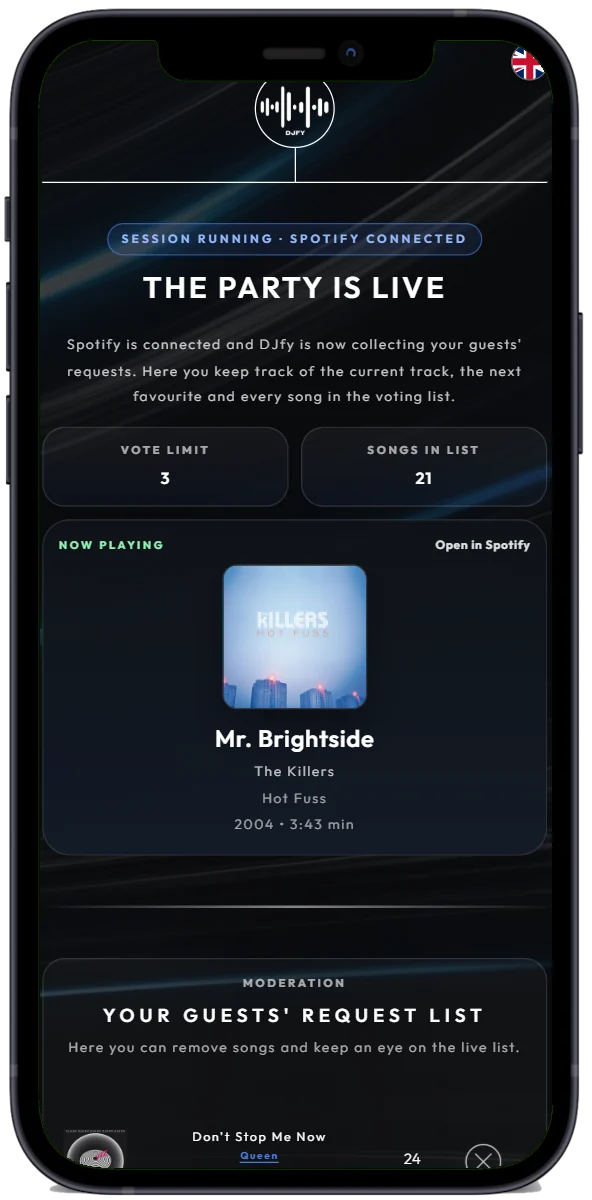
Once you’ve gained access to the DJ area, you can connect DJfy to Spotify. To do this, we’ll redirect you to the Spotify login page. There, you’ll confirm the connection to the DJfy app. To use the full range of features, DJfy requires the following Spotify permissions:
Read Playback State
Read access to currently playing contentRead Currently Playing
Read access to the currently playing trackRead Playback Position
Read access to the current playback positionRead Recently Played
Read access to recently played songs (up to 10 tracks)Modify Playback State
Control playback on your Spotify client (e.g., to queue songs)User Read Email
Retrieving your email address (stored only for the duration of the login session and then permanently deleted)
FINAL STEP
Play music on Spotify πΆ
From now on, there’s just one thing you need to do: Play the music through your Spotify account.
DJfy automatically detects whether a song is currently playing and, if so, which one. If one of your guests submits a song request and it receives more votes than you’ve set, it will automatically play once the current voting round ends.
To help you get some inspiration for your party ahead of time, we’ve put together the following Spotify playlists for you:
That's it! π₯
Starting now, your guests can submit song requests.
If the number of songs you’ve selected exceeds the set limit, they will play automatically.
DJ - Features at a Glance
Add Songs 
You and your guests can use the search function to find songs in the Spotify database. Therefore, only tracks that are available on Spotify will be accessible.
Remove Songs β
In the DJ area, you stay in control of your songs. You can remove individual song requests if you feel they don’t fit the party
Change Vote Limit π’
In the “CONFIG” menu option in the DJ section, you can adjust two settings: the vote limit and your preferred genre. The vote limit determines how many likes a song needs to be played automatically. When you select a genre, it will be given priority during song searches.
Like songs β€
Songs with a filled-in heart have already received a vote from you. A blue heart indicates your personal song requests.
Next Song β©
When you click the “Next Song” button, the song from the voting list with the most votes will play immediately. If there is no song in the voting list, the next track from your Spotify playlist will play instead.
Reset π
If you’re using DJfy, you shouldn’t control music playback in the Spotify app at the same time. DJfy is designed to work with as little additional input as possible. If you skip ahead in the Spotify app, DJfy may end up βwaitingβ for a song that is no longer playing. In this case, you can reset the controls via the βHELPβ menu item. All song requests will be preserved, and the highest-rated song will be played next.
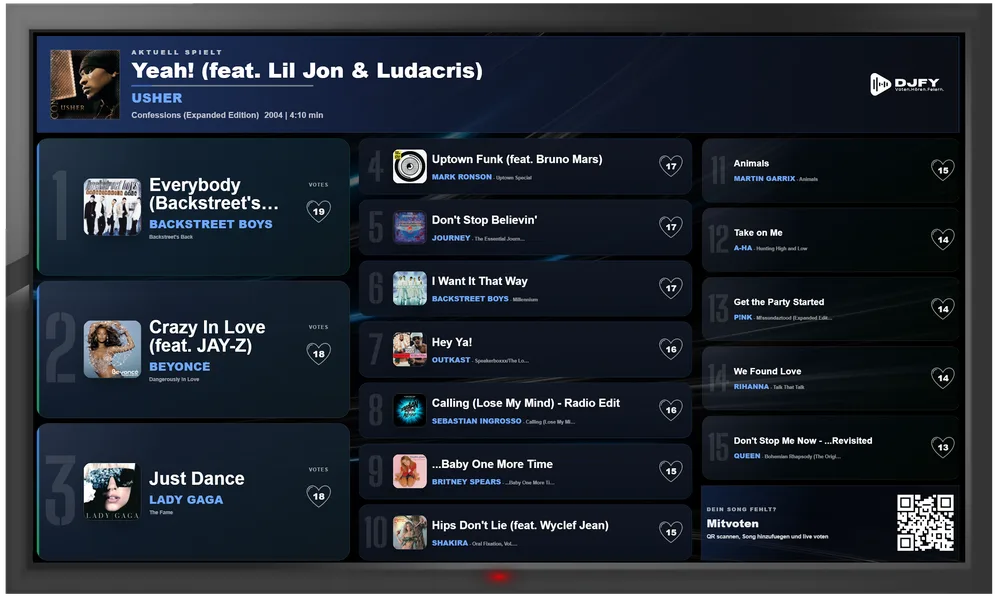
TV Feature πΊ
If your party venue has a central screen or TV, you can display the current Top 20 songs for everyone to see. This display updates automatically every 30 seconds. You can access the page at wunschdomain.djfy.at/barview.
Important Information Before You Begin
To ensure that your party goes off without a hitch, please read the following guidelines:
Note 1
Enable Crossfade in Spotify π‘
To avoid pauses between songs and get that DJ-like feel, you should enable the “Spotify Crossfade” feature.
Open Spotify and tap Start (the house icon)
Tap “Settings” (gear icon) directly, or open your user account in the top-left corner and click “Settings” (gear icon) there.
Scroll down to Playback
Set the slider under “Transition” to a transition duration of 10 seconds
Enable the “Automix” feature. This also ensures seamless transitions between songs that are synchronized with the beat.
Note 2
Just let Spotify play πΆ
Don’t skip songs in the Spotify app!
Just let the Spotify playlist play, or use the “Next Song” feature. Nobody likes it when you skip songs in the middle of a track anyway π
Note 3
Is the DJfy app freezing? π€